Install Antla from the Shopify App Store, walk through onboarding, create your first Funnel with products, enable the theme embed, and confirm credits or billing if you need them. Most stores go live in one sitting.
You need access to install apps on your Shopify store.
Use a theme that supports app embeds (Online Store 2.0 themes work best).
Have a short list of products you want shoppers to try on first—start small, then expand.
Open Antla in the Shopify App Store and click Install.
Review permissions and approve access for your store.
When installation finishes, Antla opens in your Shopify admin under Apps.
You land in Antla’s onboarding flow (or the main app if you already completed it).
Onboarding guides you through the essentials so Try On works on your storefront:
Create a Funnel — Pick a template (or customize), choose a generation model, and name the Funnel.
Add products — Select products manually or set rules so matching products stay in the Funnel automatically.
Enable the theme embed — Turn on Antla’s app embed so the Try On button can appear on product pages. If you use Tapcart or a headless storefront instead, see Choose where Try On appears.
Credits & billing — Confirm you have credits available. If your plan or trial needs an upgrade or a credit pack, complete that before heavy traffic.
You can finish design polish later in On Site Design. Getting a Funnel live with the embed enabled is the priority.
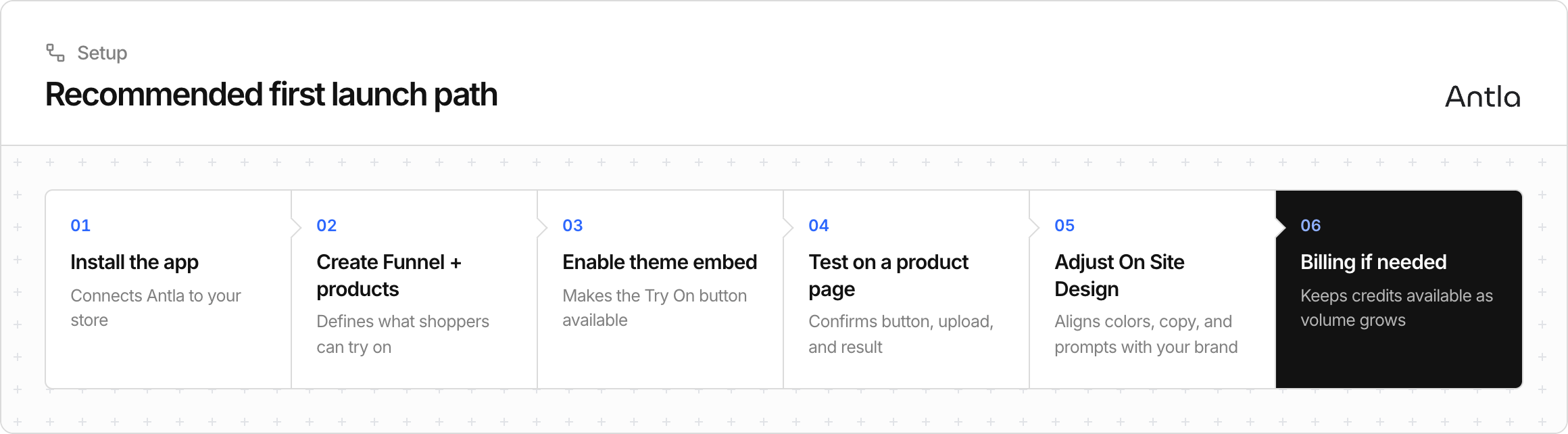
Order | Action | Why |
|---|---|---|
1 | Install the app | Connects Antla to your store |
2 | Create Funnel + products | Defines what shoppers can try on |
3 | Enable theme embed | Makes the Try On button available |
4 | Test on a product page | Confirms button, upload, and result |
5 | Adjust On Site Design | Aligns colors, copy, and prompts with your brand |
6 | Billing if needed | Keeps credits available as volume grows |
Detailed Funnel setup: Create your first Funnel. Theme embed steps: Enable the Try On button (theme embed).
After onboarding:
Open your Online Store and go to a product you added to the Funnel.
Confirm the Try On button appears on the product page.
Run a quick test: upload a clear full-body or torso photo and generate a look.
If the button is missing, check these three conditions:
The product is still in an active Funnel (products are tagged for storefront visibility).
Your shop has available credits.
The Antla theme app embed is enabled and saved on the live theme.
See Enable the Try On button (theme embed) if the embed is the missing piece.
Each successful generation uses credits. The Try On button only shows when your shop has credits available. During onboarding or right after, review your plan and remaining balance so launch day traffic does not hide the button.
When you are ready for more volume, upgrade your plan or purchase a credit pack from Antla billing. Keep an eye on usage in the app as try-ons grow.
Start with one Funnel and a focused product set (best sellers or a collection).
Choose Antla Fast or Antla Pro based on whether you prefer speed or maximum accuracy—see Choose a generation model (Pro / Fast / Light).
Customize On Site Design after the technical setup works—see Customize On Site Design.
Share Photo tips for best results with your team so support and marketing know what photos work best.