Shoppers open a product, tap Try On, upload a photo, wait for generation, then see themselves in the product. Depending on your settings, they can also share the look, leave an email, or receive a discount.
This walkthrough is the shopper path. The button itself can come from the theme embed, Tapcart, or Headless SDK. Headless API uses the same generation, with your own screens.
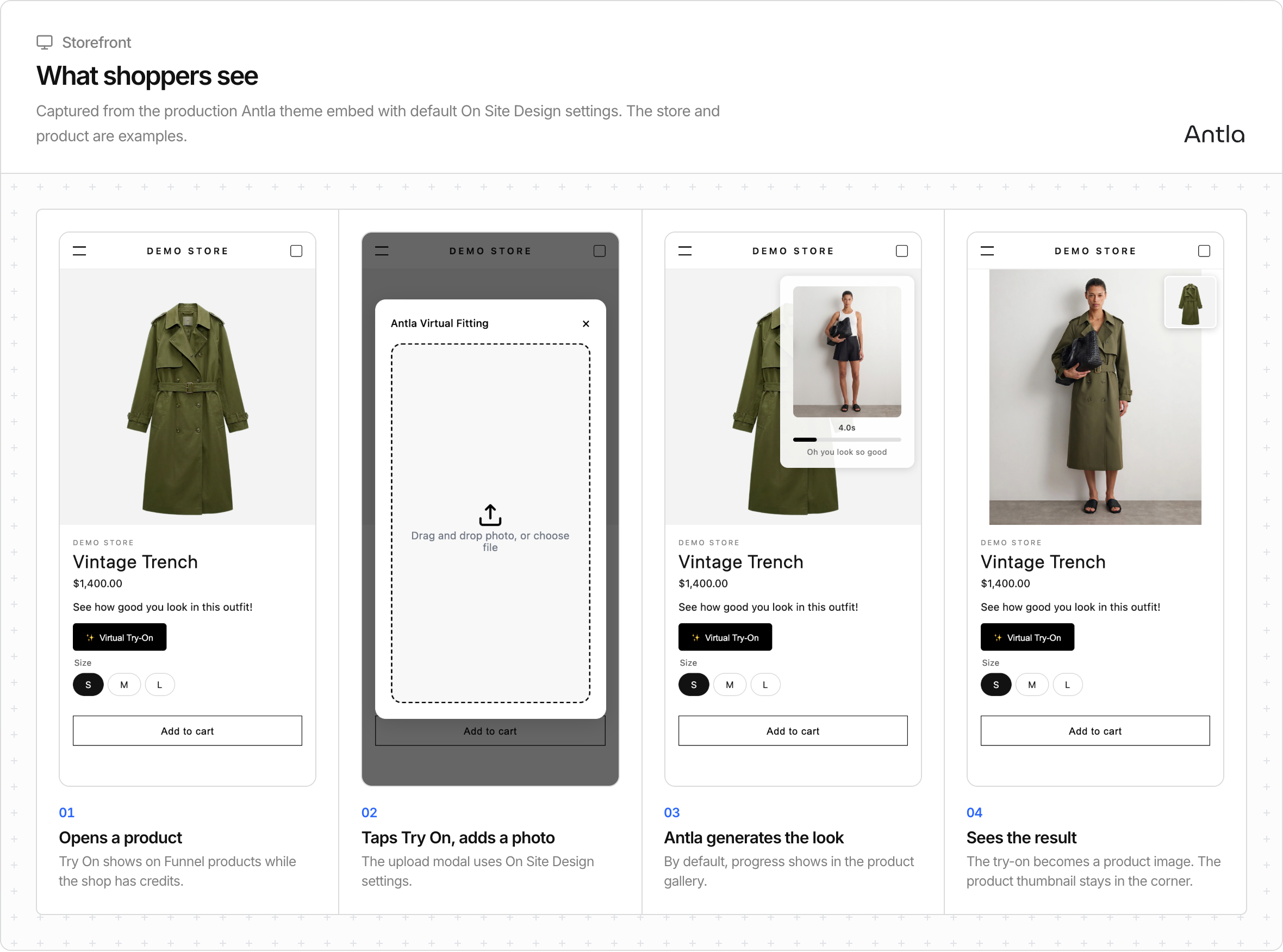
The shopper lands on a product detail page. On the Online Store, Try On appears only when:
The product is in a Funnel (tagged for that Funnel)
Your shop has credits available
The Antla theme embed is enabled
Otherwise the theme hides the button so shoppers never start a flow that cannot run. Tapcart and Headless SDK have their own placement rules. See Choose where Try On appears.
The shopper opens the Antla experience powered by your theme embed and On Site Design settings. This is where your branded upload guidance appears.
They upload an existing photo or take a new one (when the device and UI allow). Clear, well-lit photos produce better results—see Photo tips for best results.
Antla uses the Funnel’s template/prompt and generation model (Antla Pro, Antla Fast, or Antla Light) to create the look. Wait time depends on the model—roughly ~12–25 seconds in typical cases.
Each generation uses credits from your shop balance.
The shopper sees themselves wearing the product. From here they can continue browsing, try another photo, or take optional next steps you configured.
If the selected variant is sold out, they can still generate a look. Add to cart stays disabled until that variant is available.
If enabled in your Antla settings / On Site Design:
Email — collect a contact to send the look or follow-ups
Share — let shoppers send the look to friends or social channels
Discount — reward try-on engagement with an offer
These steps are optional for the shopper; the core value is seeing the try-on result.
Area | Why it matters |
|---|---|
Funnel + products | Determines which PDPs are eligible — Create your first Funnel |
Storefront | Theme embed, Tapcart, Headless SDK, or Headless API — Choose where Try On appears |
Credits | Keeps Try On visible and generations running |
On Site Design | Sets the UI shoppers actually use — Customize On Site Design |
Model choice | Sets quality vs speed — Choose a generation model (Pro / Fast / Light) |
Completed looks appear in Try-On Feed inside Antla. Use the feed to spot photo-quality issues, check Funnel performance, and inform design or model changes.
Use a phone and a desktop once each.
Test a Funnel product and a non-Funnel product (button should only show on Funnel products when credits remain).
Upload a strong photo and a weak photo to see how guidance and results differ.
Walk through email/share/discount only if those features are on for your store.